Your Cart is Empty
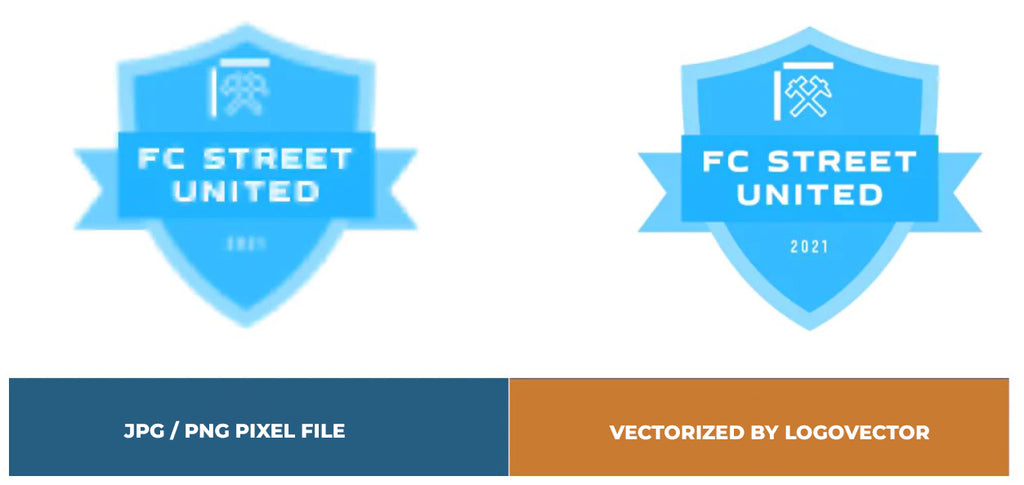
A vector file is an image defined by mathematical paths, not pixels. The artwork is constructed from curves, lines, and nodes that describe geometry rather than fixed color samples.
Structural distinction:
Vector graphics → paths, curves, coordinates
Raster graphics (JPG / PNG) → pixel matrix, resolution-bound
Because vectors are geometry-based, scaling does not rely on interpolation. Shapes are recalculated at any size, preserving edge clarity and structural precision.
Important nuance:
Raster images can be enlarged technically, but no new detail is created. Pixels are simply resampled, which often introduces softness or artifacts. Vector graphics avoid this limitation entirely because there is no pixel grid to stretch.
Why vectors matter in production workflows:
✓ Resolution-independent scaling
✓ Clean edge reproduction
✓ Stable behavior in print and RIP engines
✓ Suitable for cutting / plotting systems
For many printing applications — including logos, signage, stickers, textiles, and promotional products — vector geometry is preferred or required.
Transforming an image into a vector file is not a simple format change. A raster image must be reconstructed into paths. This can be achieved through automated tracing or manual geometric rebuilding, depending on quality requirements.
Several software environments support vector workflows, but they differ significantly in capability and output control.
These applications are designed to create and manage paths directly.
Adobe Illustrator
✓ Industry-standard vector editor
✓ Automated tracing (Image Trace)
✓ Precise node and curve control
✓ Reliable EPS / SVG / PDF output
Inkscape (free, open source)
✓ Full vector editing capabilities
✓ Trace Bitmap for reconstruction
✓ EPS / SVG / PDF export
✗ More manual cleanup often required
CorelDRAW (widely used in production)
✓ Vector-native workflow
✓ Tracing and geometry tools
✓ Strong signmaking integration
These tools operate on geometry rather than pixels, making them structurally appropriate for vector reconstruction.
These programs are designed primarily for pixel editing.
Adobe Photoshop
✓ Can create paths manually
✓ Can save EPS containers
✗ No true automated vectorization engine
✗ EPS output typically raster-based
Photoshop can assist with manual path drawing, but it is not a vectorization tool in the conventional production sense.
Some drawing applications can generate vector data but are not optimized for technical vector reconstruction.
Procreate
✓ Excellent for illustration
✗ Raster-based internally
✗ Vector export not native
Procreate artwork typically requires transfer to a vector editor for production use.
Certain popular design tools are often misunderstood.
Canva
✗ No true vector reconstruction tools
✗ Exports may use vector containers, but editing/control is limited
Vector file creation requires path-level control, which Canva does not provide.
Generating a file with an EPS, SVG, or PDF extension does not guarantee:
✓ Clean geometry
✓ Minimal nodes
✓ Stable curves
✓ Production suitability
Vector quality is defined by path logic and geometric efficiency rather than format alone.
Automated tracing tools accelerate workflows but commonly introduce:
✗ Node inflation
✗ Irregular curves
✗ Fragmented shapes
Manual reconstruction is often required for precision-critical graphics such as logos and brand assets.
We often get the question: is PNG a vector file? Or is JPG a vector file? The answer is no. PNG and JPG are raster formats (pixel-based). They describe a grid of pixels, not geometric paths. When a print shop asks for “EPS”, they usually mean vector geometry inside an EPS container—not simply a file that ends with .eps.
Common vector containers / extensions include:
EPS (container; may contain vector or raster)
AI (Illustrator source; typically vector)
PDF (container; may contain vector or raster)
SVG (web-native vector)
Critical nuance (production-relevant):
Changing the file extension does not create vector geometry. A “vector file from PNG” requires reconstruction of shapes into paths (automated tracing or manual drawing).
We can teach the workflows for JPG / PNG / PDF, but you need to understand what a vector file is: paths, curves, nodes, and the ability to scale without interpolation.
Illustrator is a vector-native application and is one of the most common tools for creating production-ready vector files. However, it’s important to frame the process correctly: converting PNG/JPG to vector is not “free magic”. It’s geometric reconstruction. Illustrator’s Image Trace can be the fastest starting point, but it rarely produces a brand-accurate, clean vector without inspection and cleanup.

If you need an identical, stable logo vector, you usually end up with some degree of manual correction (or full Pen Tool reconstruction).
Open Illustrator
File → Place… → choose your JPG/PNG
Avoid pasting the image into the document
Why: placed images preserve predictable scaling and reduce hidden transform issues.
Zoom to 200–400% and check:
JPG artifacts (blockiness / halo noise)
soft edges
tiny details that will not survive print
background noise
Why: Image Trace turns defects into nodes and micro-shapes.
Select the image
Window → Image Trace
Critical nuance: the trace you see initially is a preview. It becomes real geometry only after expansion.
Black & White → line art, single-color logos
Color → flat color logos (limited palette)
Grayscale → tonal artwork (often problematic for production)
Why: mode defines segmentation logic (what becomes shape vs background).
Presets like High Fidelity Photo and Low Fidelity Photo are not “better” or “worse” universally:
High Fidelity often creates excessive geometry (node inflation)
Low Fidelity can destroy shape intent
For logos, start with logo-appropriate presets (B/W or limited color), then adjust.
Why: more “detail” usually means more anchors, not better production behavior.
Key controls that affect vector structure:
Threshold / Colors
→ controls shape detection
Paths
→ higher = closer outline, more nodes
Corners
→ affects corner retention (can increase jaggedness)
Noise
→ filters micro-artifacts (often essential for JPGs)
Why: you’re balancing visual similarity against geometric stability.
Click Expand
(or Object → Image Trace → Expand)
Why: until Expand, you do not have editable vector objects.
After expansion, inspect for:
excessive anchor points on smooth curves
fragmented shapes
stray micro-objects
unwanted overlaps
Typical corrections:
✓ delete artifacts
✓ merge shapes where logical (Pathfinder)
✓ simplify cautiously (small increments)
✓ fix key curves manually with the Direct Selection tool
Why: auto-trace output is rarely production-stable without refinement.
Switch to View → Outline and inspect:
✓ path continuity
✓ node density
✓ curve smoothness
✓ hidden junk geometry
Why: preview can look fine while geometry is structurally poor.
Best practice:
Save an editable master: AI
Export as required: EPS or PDF (and SVG if needed)
Why: EPS/PDF are often client/printer deliverables; AI is your source of truth.
If you need a truly identical and stable logo vector, Image Trace can be the wrong approach. Manual reconstruction typically yields:
✓ clean Bezier curves
✓ minimal anchor points
✓ predictable production behavior
✓ better cutting/plotting stability
✓ Can produce true vector geometry
✓ You control export formats (EPS/AI/PDF/SVG)
✓ Suitable for production workflows when geometry is clean
✗ Subscription cost
✗ Learning curve (paths, nodes, QC)
✗ Tracing output often needs cleanup
✗ Manual reconstruction is time-intensive
Photoshop is fundamentally a raster editor, not a vectorization tool. That distinction is critical. Photoshop manipulates pixels. Vector graphics require paths and geometric curves.

While Photoshop includes shape layers and path tools, it does not provide automated raster-to-vector reconstruction comparable to vector-native applications. Any vector result inside Photoshop is therefore created by manual path construction, not conversion.
Important baseline:
JPG / PNG → pixel-based raster data
Vector graphics → paths / curves / nodes
Saving/exporting formats ≠ generating vectors
Photoshop can produce EPS files and can store paths, but the workflow and output constraints differ significantly from Illustrator or Inkscape.
Not every image is a good candidate for manual path reconstruction. Photoshop vector workflows are realistic mainly for:
✓ Simple logos
✓ High-contrast graphics
✓ Clean silhouettes
✓ Limited detail artwork
Poor candidates include:
✗ Photographs with texture
✗ Soft gradients
✗ Complex shading
✗ Noisy JPGs
Why this matters:
Photoshop does not reconstruct geometry automatically. Complex imagery becomes impractical to redraw manually.
This workflow does not convert pixels into vectors. It describes manually rebuilding shapes using Photoshop’s path engine.
Open Photoshop
File → Open → select JPG / PNG
Zoom to 200–400% and inspect edges
Optional corrections:
✓ Increase contrast for clearer edges
✓ Remove distracting background elements
✓ Reduce compression noise
Why: clean edges improve path accuracy. Photoshop cannot infer missing geometry.
Use selection tools appropriate to the image:
✓ Select Subject
✓ Quick Selection Tool
✓ Pen Tool (for precision)
Refine the selection if needed.
Why: vector paths require clear shape boundaries.
With an active selection:
Open the Paths panel
Choose Make Work Path
Tolerance considerations:
Lower tolerance → more anchor points
Higher tolerance → smoother but less accurate paths
Why: this step creates geometric paths from pixel selections, but quality depends on edge clarity.
Select the Direct Selection Tool (A).
Check for:
✓ Excess anchor points
✓ Jagged curves
✓ Unwanted micro-segments
✓ Path irregularities
Manual refinement:
✓ Adjust Bézier handles
✓ Remove unnecessary points
✓ Smooth curve transitions
Why: automated path generation from selections often produces unstable geometry.
From the Paths panel:
✓ Convert path to shape layer
Why: shape layers behave more predictably and maintain fill/stroke logic.
Complex artwork usually requires multiple separate paths.
Why: combining everything into one path reduces editability and structural clarity.
File → Save As…
Choose Photoshop EPS
Critical nuance:
✓ EPS container created
✗ Vector scalability depends on path usage
✗ Raster content may still be embedded
Photoshop EPS files frequently contain raster data unless paths fully define the artwork.
Do not trust the extension.
Validation checks:
✓ Open EPS in vector software
✓ Confirm shapes are selectable paths
✓ Zoom heavily for curve stability
✓ Detect embedded raster imagery
Why: EPS validity does not guarantee vector geometry.
Photoshop path tools are designed primarily for:
✓ Masking
✓ Clipping
✓ Compositing
Not for production-grade vector construction.
Limitations include:
✗ No automated vectorization engine
✗ Less precise node management
✗ Limited vector cleanup utilities
✗ Inefficient for complex graphics
Typical issues when attempting vector work in Photoshop:
✗ Excess anchor points from selections
✗ Irregular curve logic
✗ Hidden raster content inside EPS
✗ Misinterpretation of “EPS = vector”
✗ Subscription licensing cost
✗ Not intended for vectorization
✗ Manual reconstruction required
✗ Geometry cleanup often difficult
✗ Poor scalability vs vector-native tools
Photoshop can store and export paths, but it does not truly “vectorize” raster images. Any vector result requires manual geometric reconstruction. For production-grade vectors, vector-native applications remain structurally superior.
Inkscape is a vector-native application and one of the most practical free alternatives for creating vector graphics. Unlike raster editors, Inkscape operates directly on paths, nodes, and curves, making it structurally suited for vector reconstruction and vector artwork creation.
Important baseline:
Inkscape → vector-first workflow
JPG / PNG → raster images (pixels)
Vector file → geometric paths (not pixels)
Creating a vector file in Inkscape is therefore technically valid, but the workflow and output quality depend on how geometry is constructed or reconstructed.
Critical nuance:
Importing a raster image into Inkscape does not automatically produce vector geometry. Vectorization requires path generation, either via tracing or manual drawing.
Inkscape supports two common scenarios:
Creating native vector artwork (best quality)
Vectorizing raster images (reconstruction from pixels)
These are technically different operations.
This is the cleanest vector workflow.
Open Inkscape
File → New
Optional but recommended:
✓ Set document units (px, mm, cm)
✓ Define page size based on output context
Why: vectors are resolution-independent, but document units affect scaling logic and production workflows.
Common tools:
✓ Bezier / Pen Tool → precise path creation
✓ Shape Tools → rectangles, circles, polygons
✓ Text Tool → vector text objects
Best practice:
✓ Use minimal nodes
✓ Build smooth curves deliberately
✓ Avoid unnecessary anchor points
Why: vector quality is defined by geometric efficiency.
Select the Node Tool.
Adjust:
✓ Curve smoothness
✓ Node placement
✓ Bézier handles
✓ Path continuity
Why: clean curves improve scaling, printing, and cutting stability.
Define:
✓ Fill colors
✓ Stroke width
✓ Stroke joins / caps
Why: visual appearance is controlled separately from geometry.
Preferred master format:
✓ SVG (native Inkscape format)
Why: SVG preserves full editability and geometric structure.
Common outputs:
✓ EPS
✓ PDF
✓ SVG (web / interchange)
Why: delivery format depends on downstream workflow.
Used when only raster artwork exists.
File → Import → select JPG / PNG
Choose Embed
Why: ensures predictable document behavior.
Good candidates:
✓ Logos / icons / silhouettes
✓ High-contrast graphics
✓ Limited colors
Poor candidates:
✗ Photographs / textures / gradients
Why: tracing engines convert pixel transitions into geometry. Complex imagery causes node inflation.
Select the image
Path → Trace Bitmap
Choose strategy:
Single Scan → Brightness Cutoff → simple graphics
Multiple Scans → Colors → flat color artwork
Why: tracing mode defines segmentation logic.
Key controls:
✓ Threshold / Colors
✓ Number of scans
✓ Smoothing
✓ Noise filtering
Typical failure mode:
✗ Excessive detail → unstable geometry and excessive nodes
Click OK.
Immediately:
✓ Move vector result
✓ Hide/delete raster reference
Why: confirms vector paths were generated.
Inspect for:
✓ Node inflation
✓ Fragmented shapes
✓ Micro-artifacts
✓ Irregular curves
Correct cautiously.
Why: automated tracing rarely produces production-stable vectors directly.
Check:
✓ Node density
✓ Curve stability
✓ Closed paths where required
✓ Absence of stray objects
Why: visual preview can hide structural defects.
Best practice:
✓ Save SVG master
✓ Export EPS / PDF if required
Important nuance:
Vector extension ≠ vector quality.
Typical structural problems include:
✗ Treating tracing as true conversion
✗ Ignoring node inflation
✗ Exporting without cleanup
✗ Assuming EPS/PDF automatically means vector
✓ No licensing cost
✓ True vector geometry support
✓ Full node/path control
✓ Suitable for print and cutting workflows
✗ Tracing requires cleanup
✗ Interpretation differences across applications
✗ Learning curve for path logic
✗ Complex imagery inefficient to vectorize
Inkscape is a technically valid tool for creating vector graphics and reconstructing vectors from raster images. Free software does not remove vectorization complexity — geometry quality still governs production reliability.
Creating a vector file without paid software is entirely possible, but the technical principles remain identical to commercial workflows. Raster images (JPG / PNG) consist of pixels. Vector graphics consist of mathematical paths. A vector file is therefore created through geometric construction or reconstruction, not simple format conversion.
Critical baseline:
Free tools do not eliminate vectorization constraints
Changing file format ≠ generating vector geometry
Vector quality depends on path structure, not software cost
Historically, various online tools offered limited free vectorization. Over time, many adopted subscription models. This shift reflects service economics rather than any change in vectorization mechanics.
Reliable free workflows today primarily rely on vector-native desktop software.
Two commonly used environments:
✓ Inkscape (fully free, vector-native)
✓ Adobe Illustrator (only free if already installed)
Raster editors alone cannot generate true vectors automatically.
Inkscape is the most technically appropriate free vectorization tool.
Vectorization is most effective for:
✓ Logos / icons / flat graphics
✓ Line art / silhouettes
✓ Limited-color artwork
Poor candidates:
✗ Detailed photographs
✗ Gradients / textures
✗ Noisy JPGs
Why: tracing reconstructs geometry from contrast transitions. Complex imagery produces excessive nodes.
Open Inkscape
File → Import → select JPG / PNG
Choose Embed
Why: ensures stable document behavior and avoids missing-link issues.
Zoom significantly (200–400%).
Check for:
✓ Edge clarity
✓ Compression artifacts
✓ Noise / texture
✓ Small pixel dimensions
Why: tracing engines interpret defects as geometry.
Select the image
Path → Trace Bitmap
Choose tracing mode:
Single Scan → Brightness Cutoff → simple logos / high contrast
Multiple Scans → Colors → flat multi-color graphics
Why: tracing mode governs how pixel transitions become shapes.
Control:
✓ Threshold / Colors
✓ Number of scans
✓ Smoothing
✓ Noise filtering
Typical failure mode:
✗ Excessively detailed tracing → node inflation and unstable paths
Click OK.
Immediately verify:
✓ Move the traced object
✓ Hide/delete original raster
Why: confirms vector geometry exists.
Tracing commonly produces:
✗ Excess anchor points
✗ Fragmented shapes
✗ Micro-artifacts
✗ Irregular curves
Cleanup actions:
✓ Delete stray objects
✓ Merge logical shapes
✓ Simplify cautiously
✓ Correct curves manually
Why: vector usability depends on geometric stability.
Check:
✓ Node density
✓ Path continuity
✓ Curve smoothness
✓ Closed paths where required
Avoid relying on visual preview alone.
Best practice:
✓ Save editable master → SVG
✓ Export delivery format → EPS / PDF / SVG
Important nuance:
Vector extension ≠ vector quality.
Free vectorization environments impose practical constraints:
✗ Automated tracing artifacts
✗ Increased cleanup effort
✗ Learning curve for node/path management
✗ Geometry validation required
These are geometric realities rather than software defects.
✗ “Vector file = EPS extension”
✗ “Tracing = perfect conversion”
✗ “More detail = better vector”
✗ “Free tools produce lower-quality vectors by default”
Vector quality is governed by geometry, not pricing.
Creating a vector file for free is technically feasible, primarily through vector-native software such as Inkscape. However, vectorization still requires:
✓ Path reconstruction
✓ Node management
✓ Curve refinement
✓ Structural quality control
Free software does not reduce geometric discipline.
Do you lack knowledge of Adobe programs? Then you can use our vector service. We can make a vector file for you at an affordable price.
We are happy to help you on your way with the vectorization of your logo or image. You send us the logo in JPG, PNG or PDF and we convert the logo into an EPS vector file using Adobe Illustrator. We use the pen tool and recreate the logo manually with the correct fonts. Then we export the new vector logo in an EPS file so you can get started!
Advantages of vector file creation by Logovector: