Your Cart is Empty

Inkscape is natively a vector authoring application. The internal document model is based on SVG (Scalable Vector Graphics), where graphical elements are stored as geometric descriptions rather than pixel data.
However, a critical technical distinction must be made:
A file format is a container, not a guarantee of vector geometry.
SVG, PDF, and EPS can all legally contain raster images. The presence of a “vector file extension” does not ensure the file actually contains paths, curves, or mathematically defined shapes. What matters is the content structure, not the wrapper.
Within Inkscape, vector objects consist of:
Paths (Bézier curves & line segments)
Nodes (topology & curvature control)
Transform matrices (scaling without resampling)
Appearance attributes (stroke/fill independent of resolution)
This geometry-driven model is why vector graphics remain resolution-independent and suitable for production systems such as RIP engines, cutters, plotters, and CAM workflows.
Importing a PNG or JPG into Inkscape does not create vector data. The bitmap simply becomes embedded raster content inside an SVG container.
Vectorising a raster image is not a format conversion but a reconstruction process where algorithms attempt to infer curve geometry from pixel transitions.
Structural workflow:
1. Import the raster image
The image remains a pixel matrix. No vector geometry exists at this stage.
2. Path → Trace Bitmap
The tracing engine analyses tonal boundaries or edges and generates Bézier paths approximating detected regions.
3. Tracing mode selection
Each mode produces fundamentally different geometric behaviour:
Brightness Cutoff → Threshold segmentation
Edge Detection → Contour emphasis
Color Quantisation → Region clustering
These parameters influence node density, path smoothness, and geometric stability rather than “visual quality” alone.
4. Expect geometric artefacts
Automated tracing commonly introduces:
Node inflation
Micro-segments
Curve jitter
Redundant paths
These are inherent consequences of interpreting discrete pixels into continuous curves.
5. Separate raster and vector result
The traced paths are placed above the original bitmap. Removing the bitmap only deletes the reference image — it does not improve vector accuracy.
Because SVG is Inkscape’s native document structure, creating vector graphics involves defining geometric primitives rather than exporting into a vector state.
Workflow logic:
1. Start a new document
The document is already an SVG container capable of holding vector geometry.
2. Create geometry, not pixels
Use tools that generate vector primitives:
Pen tool → Explicit Bézier construction
Shape tools → Parametric geometry
Node tool → Topology & curvature control
Vector integrity depends on node placement and curve continuity, not visual styling.
3. Avoid raster-based assumptions
Effects, filters, or embedded images do not become vector simply because they reside inside an SVG file.
4. Save as SVG
Saving preserves the geometric data structure. No “conversion” occurs because the document is already vector-based.
Exporting from Inkscape requires understanding that vector compatibility depends on content structure, not the chosen extension.
SVG, PDF, and EPS are containers interpreted differently by downstream systems (RIP engines, cutters, other design software).
Production-aware considerations:
PDF / EPS may embed raster data
Stroke appearance may be interpreted differently
Transparency handling varies by renderer
Unsupported features may rasterise on export
For geometry-critical workflows (cutting, plotting, CNC, embroidery preparation), verification is recommended:
Outline / wireframe inspection
Node density analysis
Object selectability checks
Detection of raster residue
The reliability of vector data is determined by geometric coherence, not by successful file export.
Inkscape is a vector-native environment designed around geometric data structures rather than pixel manipulation. Raster images can be embedded, but vector geometry must always be constructed or reconstructed.
We are happy to help you on your way with the vectorization of your logo or image. You send us the logo in JPG, PNG or PDF and we convert the logo into an EPS vector file using Adobe Illustrator. We use the pen tool and recreate the logo manually with the correct fonts. Then we export the new vector logo in an EPS file so you can get started!
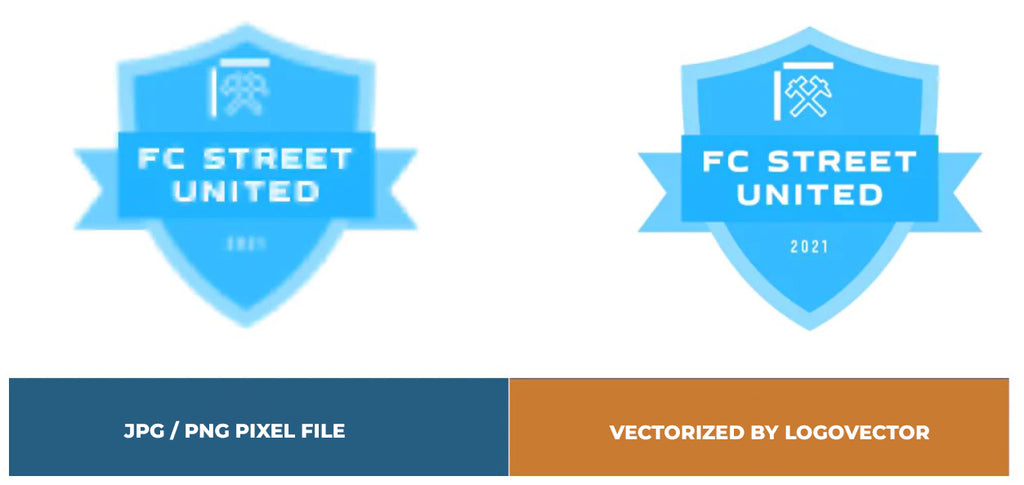
Advantages of vector file creation by Logovector: